Last Updated: 02/09/2026
The Order Routing & Stock Balance app allows you to manage the allocation of inventory to Shopify orders based on the priority order of the locations you define.
This priority order changes as locations are depleted by orders and also based on the maximum shippable product quantity.
0.1. Location Management
To allow the app to optimize the allocation of inventory to orders, you must configure the priorities and picking quotas for each location in your Shopify store.
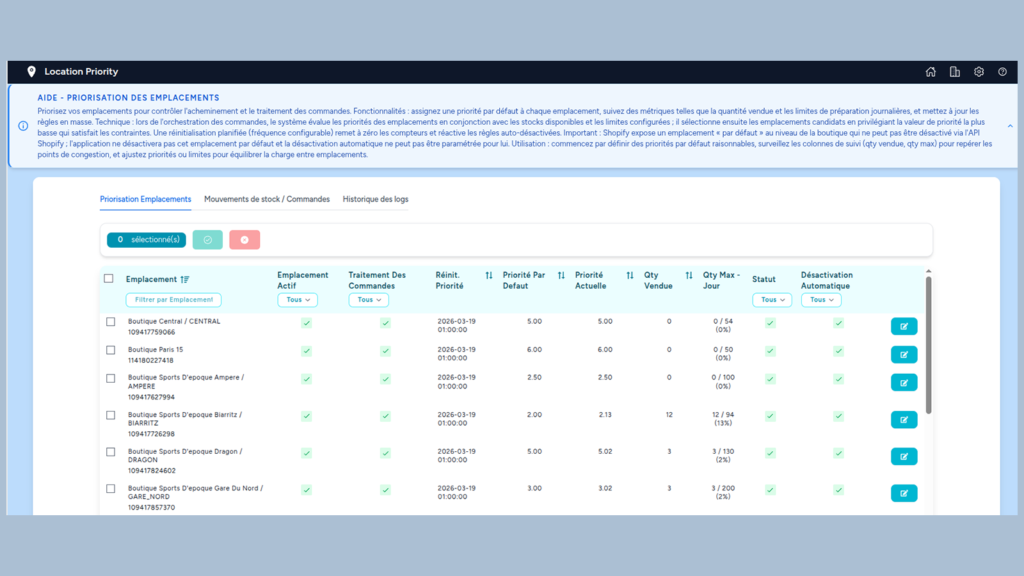
Configure Priorities and Picking Quotas
- Go to the “Prioritization” tab in the app.
- Once on the “Location Prioritization” page, click the edit icon (pencil) for one of your warehouses.
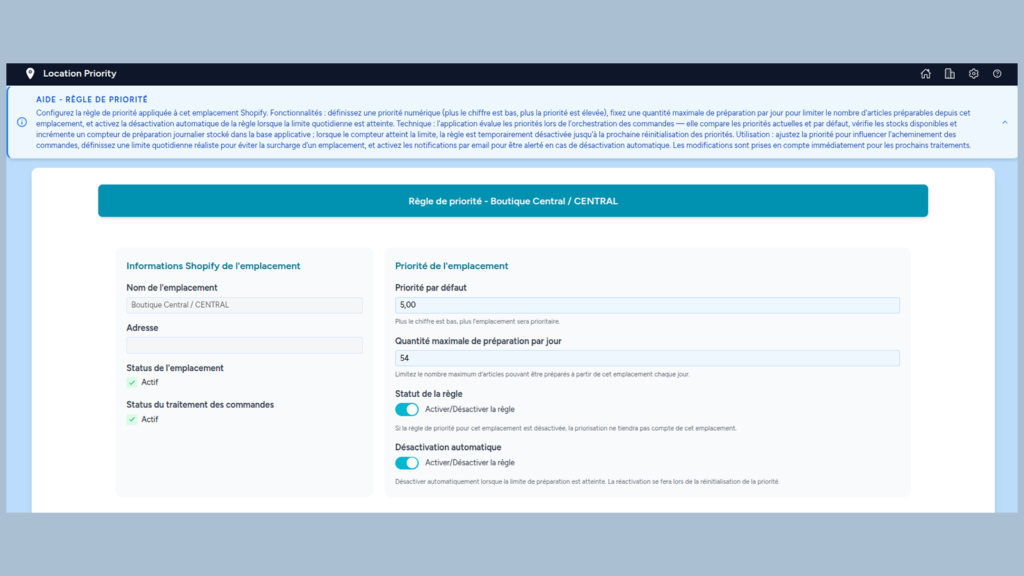
- Enter the following settings:
- Default Priority The priority used as the basis for the algorithm. The higher the number, the lower the priority of the location.
- Maximum daily picking quantity Daily limit on the number of products to be assigned to the location. As assignments are made, the location’s priority decreases. When the threshold is reached, the rule may automatically deactivate, making the location completely unavailable for orders (if the auto-deactivation setting is enabled).
- Rule status Active: The location is available for ordering. Inactive: It is no longer available for ordering.
- Automatic Deactivation If checked, once its daily allocation limit is reached, the location is removed from the prioritization routing. It will be automatically reactivated the next day when the daily prepared quantities are reset.
0.2. Dynamic Priority Calculation
The application calculates priority in real time, based on the quantity sold per location, the base priority, and the maximum daily quantity limit.
The more orders a location/store prepares, the lower its priority becomes in favor of another location with lower demand.
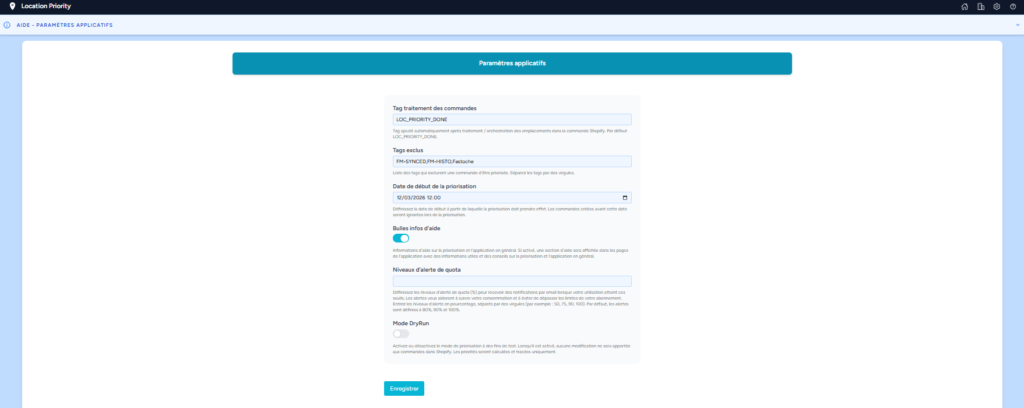
0.3. Application settings
Secures your logistics by not processing certain orders and by defining management rules:
- Ignored orders Orders with a delivery method of "pickup," "relay," or "pickup" are not processed or orchestrated. POS sales are also ignored.
- Prioritization tags Tag added to the order once orchestration is complete.
- Start Date Only orders created after this date will be processed.
- Exclusion tags A list of tags that allow you to exclude an order from orchestration/prioritization processing.
- Test Mode (Dry Run) If enabled, this setting allows you to simulate transactions. The app will record activity logs without modifying your orders on Shopify.
0.4. Tracking and Traceability (Logs)
The app provides full visibility into every orchestration decision.
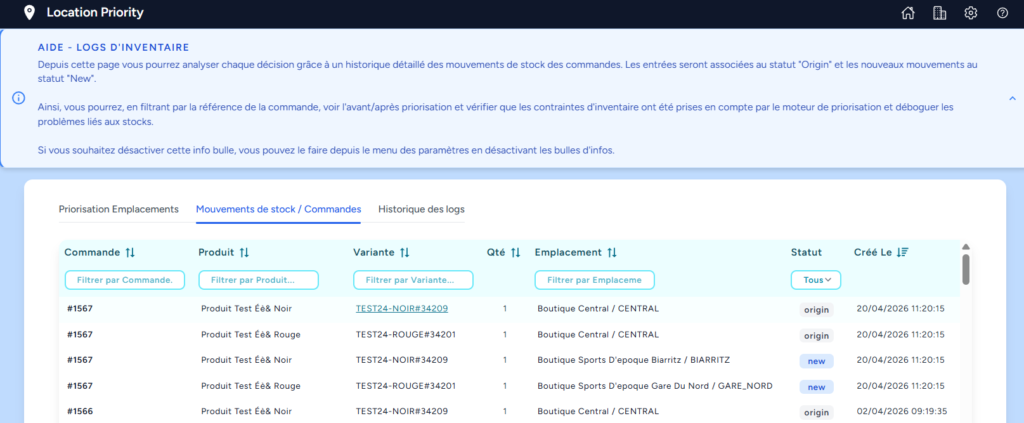
Records every processed order line:
- Original Status: Location assigned by Shopify when the order was created.
- Status new: New location assigned by app.
- Details: Product name, SKU, EAN, and quantity assigned to a new location.
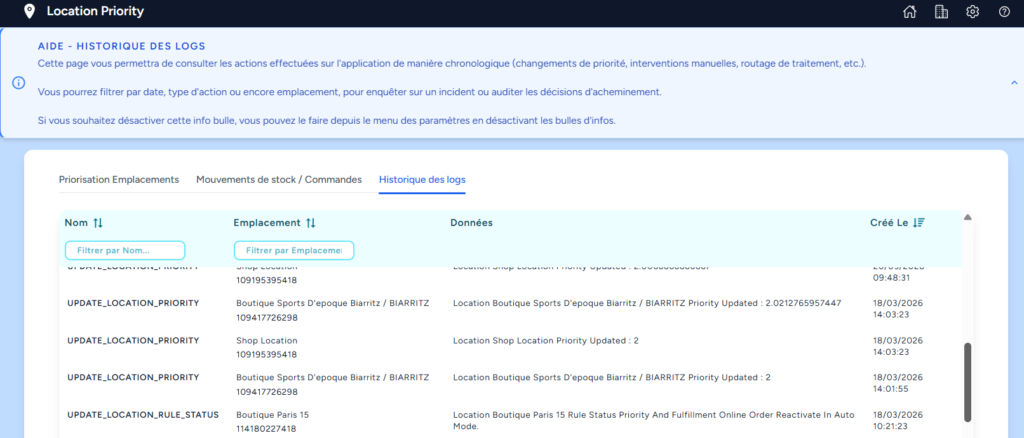
Priority tracking:
- Log of dynamic priority changes.
- Log when a store is deactivated (max picking reached) or reactivated (frequency reset or manually).
0.5. Subscription Management
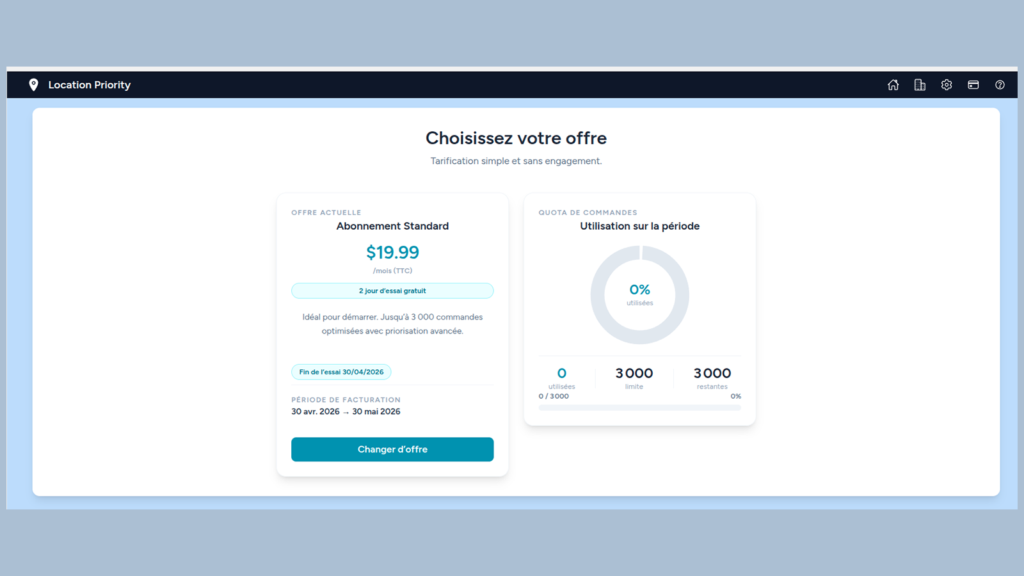
When you install the Order Routing & Stock Balance app, you choose a plan based on your needs; this plan resets to 0 every 30 days.
A subscription is recommended based on the number of monthly orders placed on your store. You can manage or modify your subscription from the subscription page at any time.
- A quota is calculated over a rolling 30-day period corresponding to your Shopify billing cycle.
- If the quota exceeds the defined order limit, your plan is maxed out and the app stops routing orders until renewal or an upgrade to a higher plan.
You can configure the app to send an email alert as soon as a certain percentage of the quota is reached (80%, 90%, 100%).
This setting can be adjusted in the “Settings” tab.